
Some of your best study time is time you can't look at a screen — commuting, walking the dog, at the gym, doing dishes. Audio Study turns that time into review time. It reads your cards aloud, pauses for you to recall, then reads the answer, so you study with your eyes and hands free. And it's free, using on-device voices.
Here's how to use it.
Can you listen to flashcards?
Yes. Most flashcard apps can play a single card's audio when you tap a speaker icon. That's useful, but you still have to look at the screen and tap through every card. Audio flashcards in the sense most people mean, a deck you can put on like a podcast and answer in your head, need a mode that reads the question, waits, reads the answer, and moves on by itself.
That's what Audio Study does. You don't need to record anything: MintDeck generates the speech from the text already on your cards, so any deck you make, generate with AI, or import from Anki or a CSV can become a deck you listen to.
What Audio Study is
Audio Study plays through a deck out loud. Depending on the mode you pick, it reads the front (and optionally the back) of each card, moving through your session like a podcast you can answer. It's not a separate paid add-on — the standard voices run on your device, free, and work offline.
It pairs perfectly with the kind of material you can hold in your head without a diagram: vocabulary, definitions, terms, dates, Q&A facts.
Step 1: Open a deck and tap Audio
From any deck's overview, tap the Audio button (the waveform icon). That opens the Audio Study setup screen.
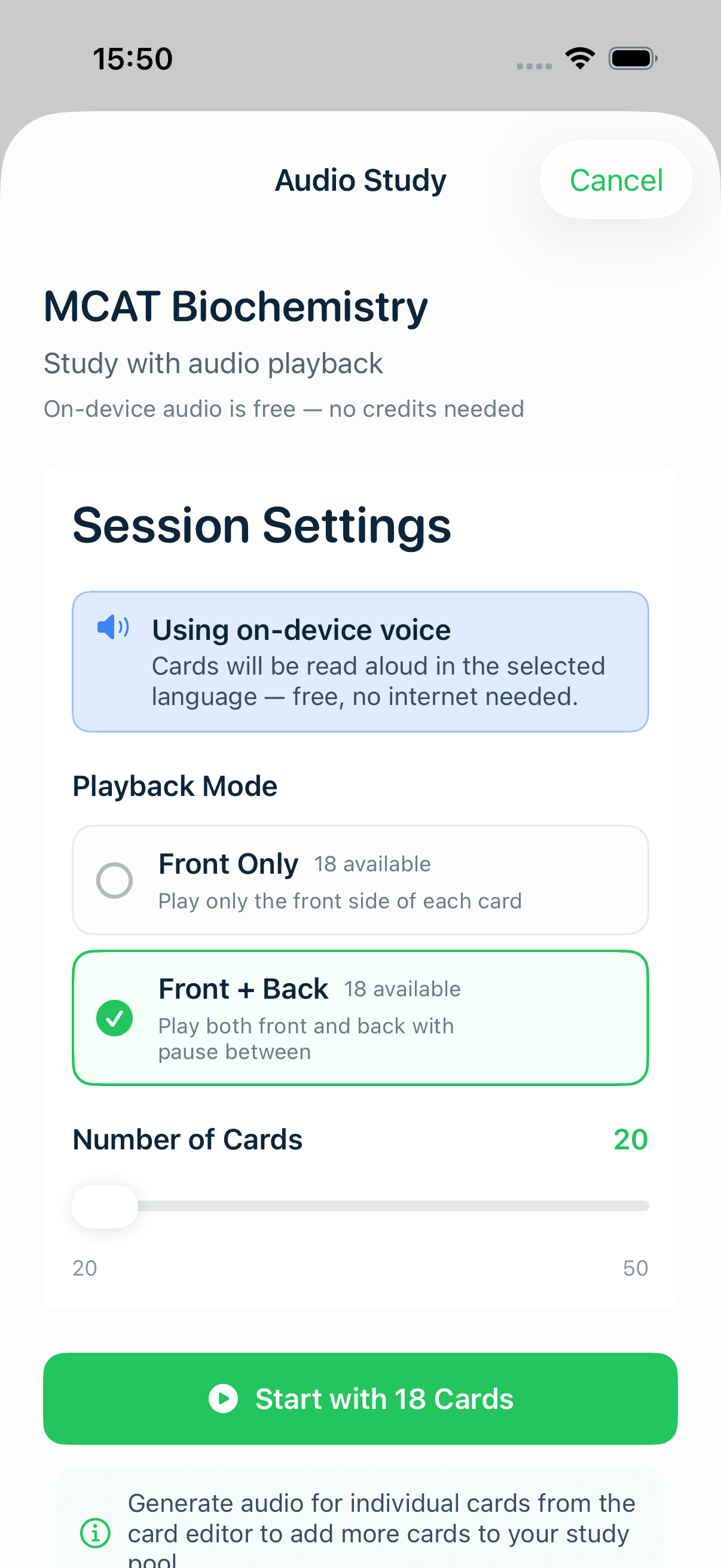
Two things to set before you start:
- Playback Mode — Front Only (good for fast recognition drills) or Front + Back (it reads the question, pauses, then reads the answer). Each mode shows how many of your cards are ready for it.
- Number of Cards — a slider for how long you want the session to run.
- Pacing — Tight, Standard, or Relaxed, which sets how long it pauses before reading the answer (or between cards in Front Only mode). Pick Relaxed if you need more time to recall.
Notice the line up top: "On-device audio is free — no credits needed." That's the default path, and it's the one most people should use.
Step 2: Press play and go hands-free
Tap Start Audio Study and the playback screen takes over. From here you can put the phone in your pocket.
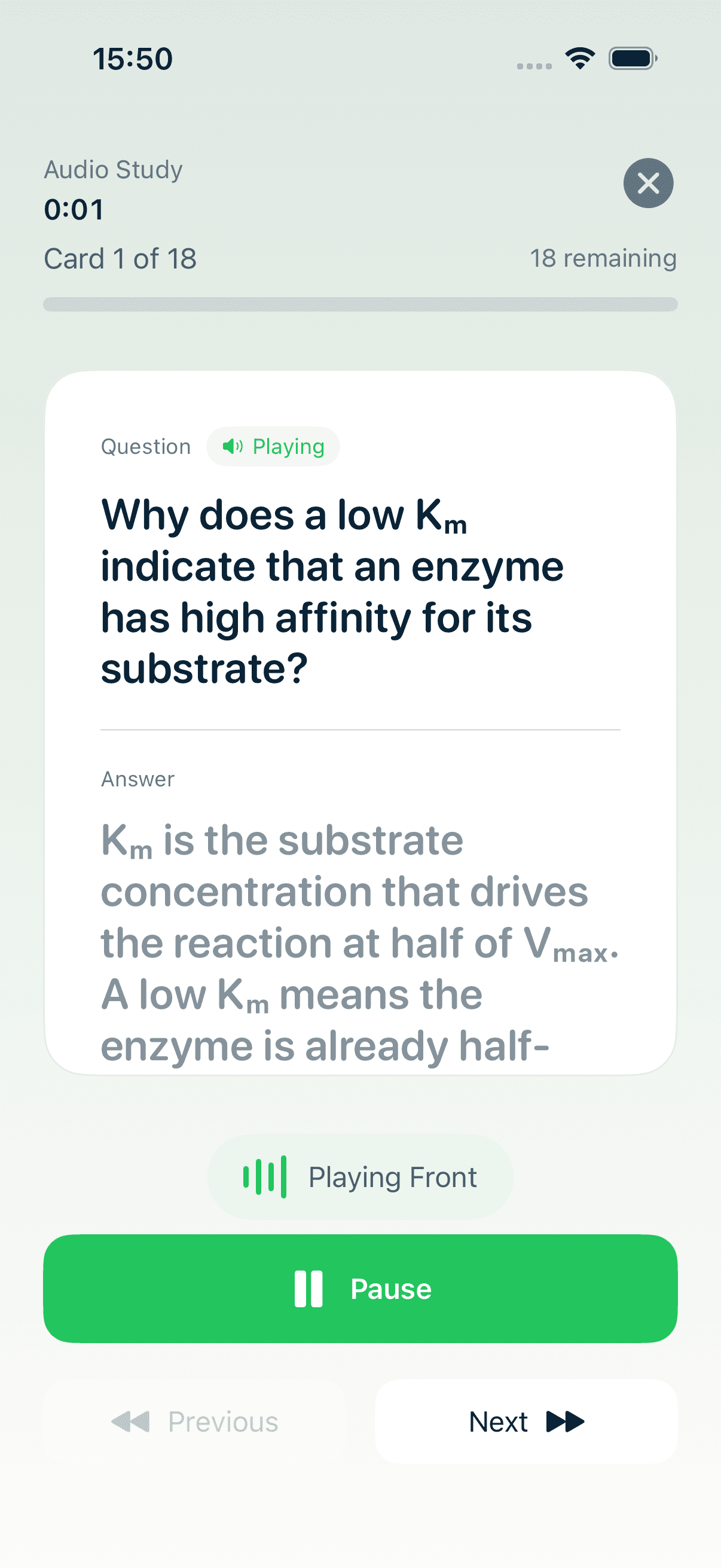
The controls are deliberately simple:
- Play / Pause — stop and resume any time.
- Previous / Next — jump back to re-hear a card, or skip ahead.
- A progress readout — "Card X of N" and how many remain — so you always know where you are.
It reads each card aloud and advances on its own. When the session ends you get a quick "Session Complete!" summary, and your progress is saved just like a normal review.
Free voices vs. the premium voice
MintDeck has three voice options, and you can see them under Settings → Sound & Haptics → Voice & Sound:
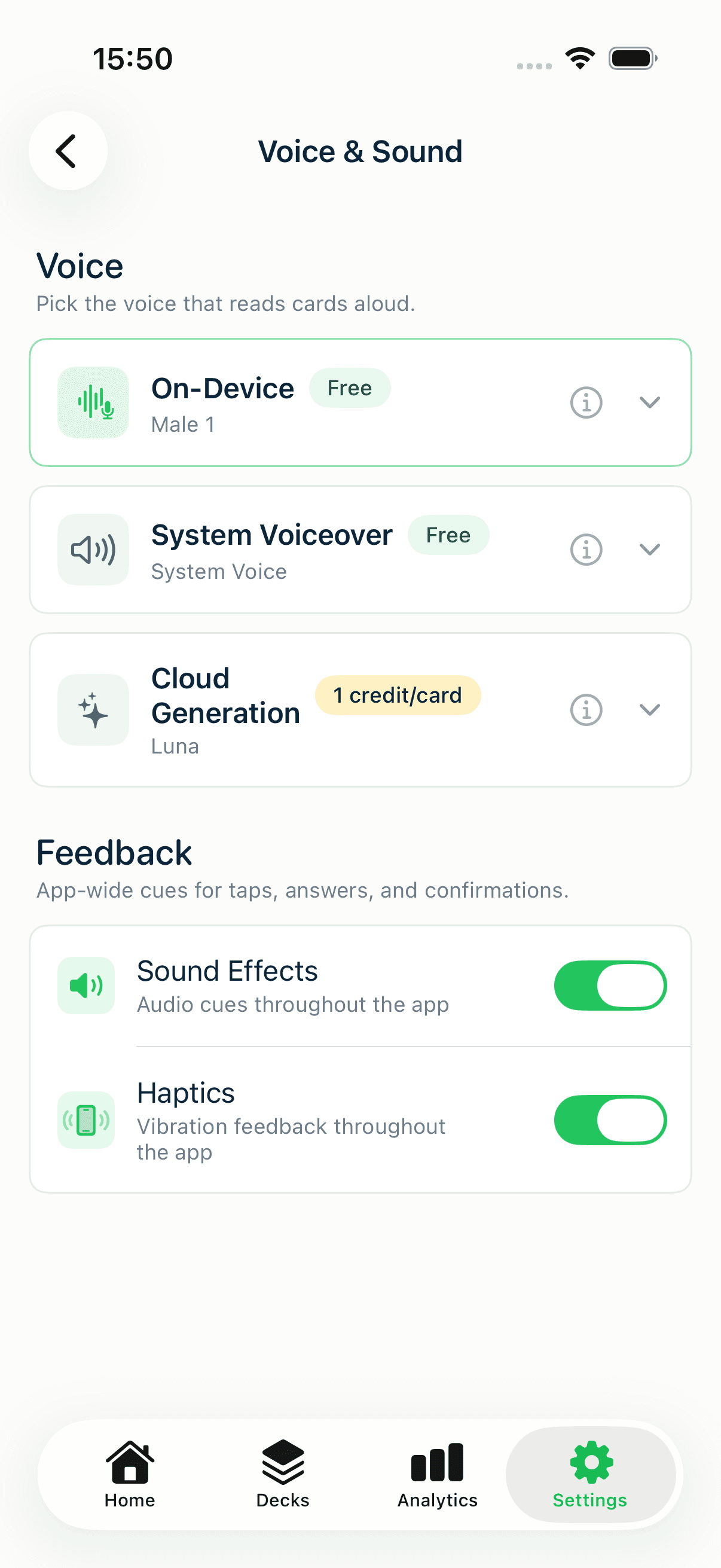
- On-Device — high-quality on-device AI voices, free, work offline, in 31 languages (including English, Spanish, French, German, Italian, Portuguese, Japanese, and Korean).
- System Voiceover — your phone's built-in voices with automatic language detection across 70+ languages, free.
- Cloud Generation — the highest-quality, most natural voices, generated in the cloud. This is the only paid option, from 1 credit per card you generate it for.
The takeaway: Audio Study is free. The two on-device options cover the vast majority of decks with no credits at all. Cloud Generation is an optional upgrade for when you want the most natural pronunciation — and even then you only pay for the cards you generate. (For the full credit picture, see what's free and what costs credits.)
The best decks for audio
Audio shines on material that's verbal by nature:
- Vocabulary and language pairs — hear the word, recall the meaning (or flip the mode and produce the translation).
- Definitions and terminology — law, medicine, biology terms.
- Facts and Q&A — dates, names, quick conceptual checks.
It's less useful for cards that require seeing something — image-occlusion diagrams, heavy math, or anything where the answer is a picture. Use audio for the verbal decks and screen review for the visual ones; together they cover far more of your day.
Where to go next
Audio Study is only as good as the deck behind it, so build an audio-friendly one: import a vocabulary list with CSV import, bring an existing deck over with Anki import, or set up a language routine with the exam & language-learning guide. Want something to listen to today? Free decks like French A1 Starter (300 cards) and Spanish A2 Core Vocabulary (300 cards) work well as audio flashcards. New to MintDeck? Start with the free study walkthrough.
Frequently asked questions
- Can I listen to my flashcards instead of reading them?
- Yes. In MintDeck, open any deck and tap Audio. Audio Study reads the front of each card aloud, pauses so you can recall the answer, then reads the back. You can lock your phone and control playback from headphones or the lock screen.
- Are audio flashcards free in MintDeck?
- Yes. Audio Study is free with the On-Device voices and System Voiceover. The only paid option is the Cloud Generation voice, which costs from 1 credit per card you generate it for. You never need it to use Audio Study.
- Which languages can MintDeck read aloud?
- The free On-Device voices cover 31 languages, including English, Spanish, French, German, Italian, Portuguese, Japanese and Korean, and they work offline. For languages outside that set, such as Chinese, the free System Voiceover option uses your iPhone's built-in voices, which cover 70+ languages.
- Does listening to flashcards count as a review?
- Yes. Audio Study saves your progress like a normal session, so your spaced repetition schedule keeps moving while you listen.
- Can I turn a Quizlet or Anki deck into audio flashcards?
- Yes. Import the deck into MintDeck first (Anki .apkg files import directly; Quizlet sets come in through a CSV export), then open it and tap Audio. MintDeck generates the speech on your device, so you don't need to record anything.
Written by
Sergiu Puscas · Creator of MintDeck
Sergiu builds MintDeck and writes every guide and comparison on this blog — drawing on building an FSRS-based flashcard app and hands-on testing of the study apps covered here.
More about Sergiu