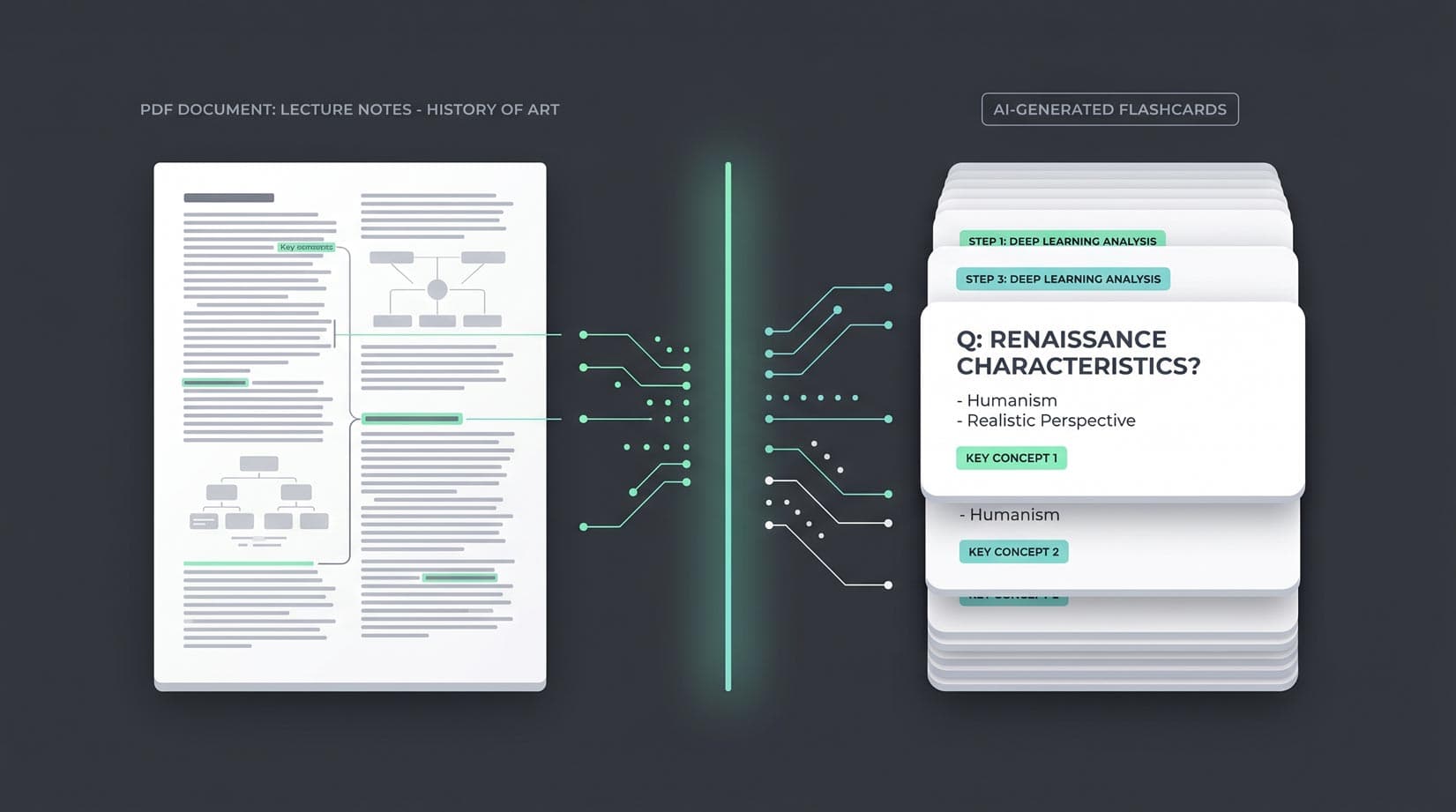
AI can make cards. Only spaced repetition makes them stick.
Asking ChatGPT (or Claude, or Gemini) to turn your notes into flashcards is one of the most useful things a chatbot can do for a student. You paste in a chapter and thirty seconds later you have fifty tidy question-and-answer pairs.
Then you scroll past them once, close the tab, and never see them again.
The cards were never the hard part. Seeing each one again at the right moment is. This guide covers a prompt that produces good cards, how to check them, and the free way to put them on a spaced-repetition schedule on your iPhone, in about five minutes.
Why a chat window isn't a study tool
A chatbot is great at writing cards and bad at everything that comes after:
- It doesn't bring cards back. Memory fades in days unless you review. A chat doesn't remind you that card 14 is due again in nine days.
- It doesn't know what you've forgotten. Some cards you'll know forever after one look; others you'll miss four times. Each needs its own schedule.
- It's a long scroll, not a deck. Reading a list of answers feels like studying but isn't. You need to answer before you see the back.
That's the job of a spaced-repetition app. The workflow is simple: ChatGPT drafts, you check, the app schedules.
Step 1: Use a prompt that makes good cards
Most bad AI flashcards come from a vague prompt. Copy this one and paste your material underneath:
Turn the text below into flashcards. Rules:
- One fact per card. If an answer has a list, split it into separate cards.
- The Front is a specific question. The Back is the shortest correct answer.
- Use only information from the text. Don't add facts.
- Put any useful context or an example in a Notes column.
- Output only a CSV with the header Front,Back,Notes. Wrap every value in double quotes.
Text: [paste your notes here]
For vocabulary, change the rules to something like: "Front is the Spanish word or phrase, Back is the English meaning, Notes is one short example sentence in Spanish."
Step 2: Check the cards (two minutes, worth it)
Chatbots are confident even when they're wrong. Before you commit a card to memory for years, skim the batch and fix or delete:
- Wrong facts. Compare anything surprising with your source.
- Vague questions. "What is important about the Krebs cycle?" has no single answer. Make it specific.
- Fat answers. If the back is a paragraph, split it into several cards.
- Duplicates. AI often asks the same thing twice in different words.
Rule 3 in the prompt (use only the provided text) cuts down on invented facts, but it doesn't eliminate them.
Step 3: Save the CSV
Copy ChatGPT's output and save it as a file ending in .csv:
- On iPhone: paste it into a new note or text file and save it to the Files app with a
.csvname. Some chatbots also offer the CSV as a downloadable file; that works too. - On a computer: paste into a text editor, save as
cards.csv, and AirDrop it or put it in iCloud Drive.
Don't worry about the delimiter or encoding. MintDeck detects commas, tabs or semicolons, and UTF-8 or UTF-16, on its own.
Step 4: Import it into MintDeck
- Open MintDeck and go to the Decks tab.
- Tap +, choose Import, then CSV.
- Pick your file. MintDeck reads the header row and maps Front, Back and Notes automatically.
- Page through the Preview to check a few cards, then tap Import.
CSV import is free and unlimited, so it never costs a credit however many cards you bring in. The full walkthrough, with screenshots, is in how to import CSV flashcards.
Step 5: Let spaced repetition take over
This is the part the chat window couldn't do.
Tap Study. You'll see each card's front, recall the answer, flip, and rate it Again, Hard, Good or Easy. MintDeck's FSRS scheduler uses that rating to decide when the card comes back: soon if you struggled, weeks or months later if you knew it. Each day you only see what's due.
A few minutes a day is enough. If you want to know why this works so well, read how to remember what you learn for years.
Learning a language? Turn on Auto-play Audio in the study screen's audio menu and every card is read aloud in a natural voice, in 31 languages, offline and free. Your ChatGPT vocabulary deck now comes with pronunciation. More in text-to-speech flashcards.
Or skip the copy-paste
If you'd rather not juggle a chatbot, a file and an import, MintDeck can also create a deck for you from a PDF, a photo of your notes, a web link or a topic. That's the one feature that uses credits, and your first AI deck is free. See what's free and what costs credits.
Either way, the cards end up in the same place: a free spaced-repetition loop with no daily cap, no ads and no subscription needed to study.
Get MintDeck free on the App Store →
Related: How to import CSV flashcards · The guide to digital flashcards · How to make flashcards with AI · How to import Quizlet sets
Frequently asked questions
- Can ChatGPT make flashcards?
- Yes. Paste your notes and ask for question-and-answer pairs. Ask for the output as a CSV with Front and Back columns and you can import it straight into a flashcard app. Check the cards before you study them: chatbots can get facts wrong.
- What's the best ChatGPT prompt for flashcards?
- Give it your source material, ask for one fact per card, short answers, and CSV output with the columns Front, Back, Notes. Tell it to use only the text you provided. The full prompt is in this article.
- How do I import ChatGPT flashcards into an app?
- Save ChatGPT's CSV output as a .csv file in the Files app, then in MintDeck go to Decks, tap +, choose Import, then CSV. MintDeck detects the columns, shows a preview, and imports the cards. CSV import is free and unlimited.
- Is it worth making flashcards with ChatGPT?
- Making the cards is the easy part. Remembering them depends on reviewing each card at the right time, which a chat can't do for you. Use ChatGPT to draft the cards and a spaced-repetition app to schedule the reviews.
- Can I make ChatGPT flashcards for a language?
- Yes, and it works well for vocabulary. Once imported into MintDeck, every card can be read aloud in a natural on-device voice in 31 languages, offline and free, so you hear the pronunciation as well as the spelling.
Written by
Sergiu Puscas · Creator of MintDeck
Sergiu builds MintDeck and writes every guide and comparison on this blog — drawing on building an FSRS-based flashcard app and hands-on testing of the study apps covered here.
More about Sergiu