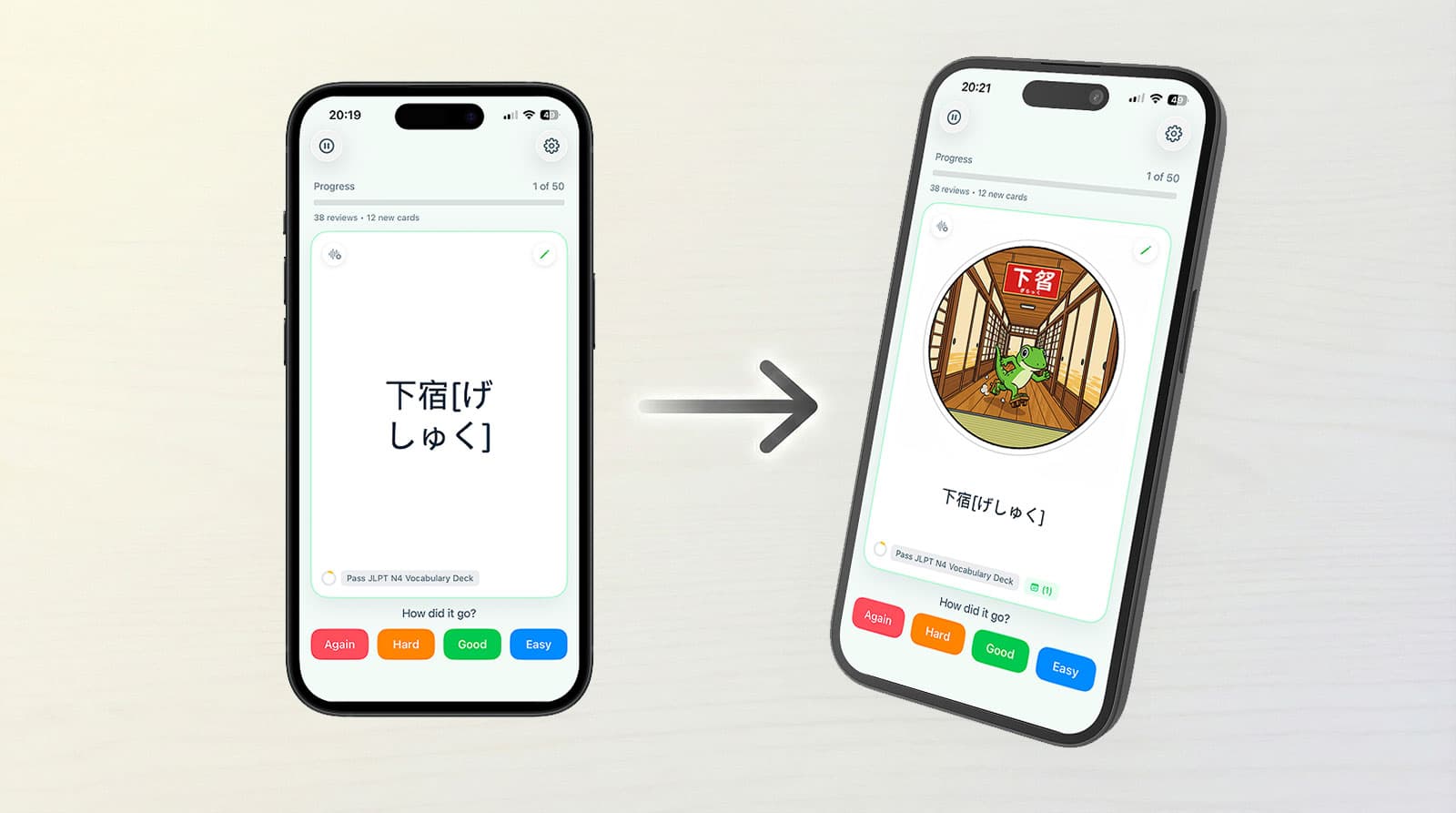
You've just imported your favorite vocabulary deck and you're ready to study — perfect! Here's a useful trick: with MintDeck, you can learn and edit your cards at the same time. As you study, you'll spot terms or cards that could use a little extra help — a mnemonic, an image, or better phrasing. The good news is, you can make those improvements instantly, without leaving the study session.
Let's walk through how that works.
Editing a Card During Study
When you're reviewing a card you'd like to improve, tap the pen icon in the upper-right corner of the screen to enter Edit Mode.
In Edit Mode, you can enhance your card in multiple ways:
- Add or replace images on either side of the card
- Attach audio files or generate new ones
- Write or generate notes to enrich your understanding
If you already have an image, tap Add Image and upload it from your files. If not, you can generate one directly using MintDeck's built-in tools.
Image Generation
MintDeck uses advanced text-to-image technology to create visuals that reinforce your learning. You have two quick helpers available:
- Insert Card Text: Automatically add your card's text into the image prompt
- Suggest a Mnemonic: MintDeck analyzes both card sides and suggests a creative, memorable visual concept that connects meaning and sound — often with a touch of humor
You can freely edit the prompt text and choose styles and aspect ratios that best fit your card. For shorter text, try a taller ratio; for longer text, a wide one works better.
The mnemonic example above — "Gecko + Shoes in a traditional Japanese boarding house" — helps recall the pronunciation "ge shuku."
Audio Generation Options
MintDeck offers three ways to add audio to your cards:
-
Device voice (default): Uses your device's built-in voices. For better results, download a high-quality voice in settings.
-
On-device model: High-quality, offline audio generation using the Kokoro model (~350MB). It's free and unlimited, currently available for English.
-
Cloud voice generation: Ultra-natural, multilingual voices that cost 1 credit per audio. Once generated, the audio is stored locally for reuse.
You can also upload your own audio file if you already have one.
Audio cards are perfect for reviewing on the go and enhancing memory through multiple sensory channels.
Adding Notes
Use Notes to store extra details, explanations, or mnemonics without cluttering your card faces. You can:
- Write notes manually, or
- Generate notes automatically using MintDeck AI (under 1 credit per note, free on Apple Intelligence devices). This analyzes the card content and suggests helpful contextual info you can review anytime.
To view notes, tap the green note indicator at the bottom of the card — it opens a streamlined overlay with all related info.
Using notes keeps your main card focused while still capturing every useful insight that boosts recall.
Make Your Cards Truly Yours
That's everything you can customize within a card! Experiment with visuals, audio, and notes — not just to personalize your deck, but to reinforce your memory through active creation. Every card you improve becomes easier to recall and more enjoyable to study.
MintDeck helps you learn smarter and create while learning — so go ahead, tweak your decks and make them uniquely yours.
Written by
Sergiu Puscas · Creator of MintDeck
Sergiu builds MintDeck and writes every guide and comparison on this blog — drawing on building an FSRS-based flashcard app and hands-on testing of the study apps covered here.
More about Sergiu